

Why do you need a Google Business Profile?
To get more online attention for your business, improve your SEO ranking, and make the best first impression!
In order to show up when customers are looking for you online—on computers or mobile devices—you have to understand how Google displays your information. Why do we care what Google does? Because they dominate the online search market with 72% of desktop and 92% of mobile search market share. Your profile is the free listing Google uses to build your ‘knowledge panel’ on Search and Maps.
And it’s also the key to local visibility.
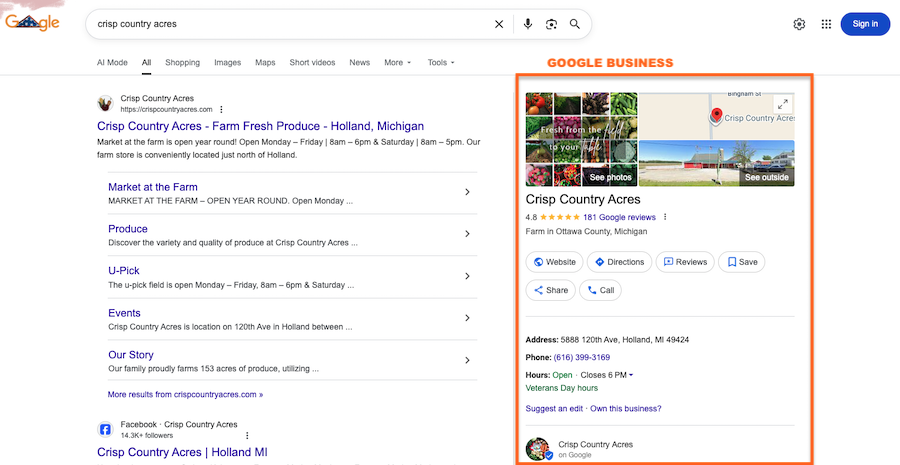
Not only does your Google Business Profile (aka Google Business Listing) increase your chances of showing up in the Google Local 3-pack, but when your business is searched for by name, Google often shows a knowledge panel that displays detailed information about your company.
These details are pulled directly from your Google Business listing and from information Google finds from other online sources and user-generated content, like third-party reviews, Q&As, user-suggested information and so on.
FUN FACT: 2.3 million searches per second are performed on Google.
Google Business Page vs. Google Business Profile
Many still refer to it as a free Google business page, but Google now calls it the Google Business Profile. They’re the same thing—but the platform’s new features make it more powerful than ever.
Over the past few years, Google has added a lot of amazing features for businesses to enhance and optimize their Google Business Profile. If you’re not taking advantage of the latest features of the platform — such as being able to manage multiple locations with one dashboard — it’s time to log into your Google Business Profile and start optimizing it. For a breakdown of Google’s newest 2025 updates, check out our blog: How to Use Google’s New Features to Boost Your Business Local Online Visibility
.

What it looks like to visitors
Your Google Business Profile (also called a free Google business listing) helps you show up in search results and maps, boosting your credibility and visibility with potential customers.
💡 When someone searches for your business name, Google often displays a knowledge panel featuring info from your listing—address, hours, reviews, and more.
How to set up your Google Business Profile

Step 1 – Visit Google Business Profile
Visit Google Business Profile.
Step 2 – Log in or Create a Google Account
Log in using your Google account or sign up for a free account. You can use any email address to create a Google account; you do not need to sign up for a separate Gmail.
Step 3 – Enter Your Business Details
Follow the step-by-step procedures on the screen. First, it will ask for the name of your business, then for a business category. We highly recommend you fill out as many details as possible, including a location customers can visit, the service area of your business, your contact information and your website URL.
Step 4 – Verify Your Listing
After filling everything out, click on the finish button and select a verification option. You may choose to verify now, later, or if you’re not authorized to manage the Business Profile, find someone in the organization who’s authorized to continue the process.
Optimize your Google Business Profile
- Claim your free Google Business Listing to increase local visibility.
- Optimize every section: description, hours, services, photos, and products.
- Add updates and respond to reviews regularly to improve engagement.
- Use free Google business resources like performance insights.
- Keep your listing current to rank higher and make a great first impression.

When you claim your listing, fill in as many details as you can, including your business name, address, phone number, email address, website, hours (if appropriate), a summary of services, and more.
Don’t just claim your listing and forget about it. Take full advantage of all the new features and special sections of information you can add about your business.
Edit Profile
When you select the Edit Profile button, you can update, change, or set an array of business data. Most of this data should have been set when you claimed your listing or when you’ve set up your Business Profile. This is where to go to make an update or change.
You can update your business name, category, service area, hours, phone number, social profiles, website, service area, service options, attributes, business description, opening date, etc.
Below is a guide to help you complete the information needed for your Google Business Profile.
Google Profile Optimization Checklist
Business Name: Enter your business name how it appears on your business card or how you normally refer to it.
Business Category: Select the primary category which best represents your business. This should be the keyword customers search for like “Mexican Restaurant,” “Deck Builder,” “Electrician,” etc. Don’t worry! You’ll be able to add more categories if you think your business encompasses multiple categories.
Description: This is the elevator pitch for your business.
Notes:
- It should be written with prospective customers in mind (people who know nothing about your business).
- Focus on the business as a whole rather than specific products/services or promotions.
- Use the most important keywords that people would generally search for to find your business.
- Remember: You are writing for humans, not search engines. There is a 750-character limit.

Opening Date: This is the date your business first opened its doors to customers. It helps potential customers understand the establishment’s history and longevity in the community.
Contact Information: Contains the section with your primary contact number, additional phone numbers, your website URL, social profiles, and the short name of your business.
Note: Short Name is a unique identifier chosen by businesses, typically a shortened version of their name or a memorable keyword. It helps customers easily find and identify the business in Google search results and maps, facilitating quicker access to essential information and improving online visibility.
Business Hours: These are the specific times your business is open to serve customers. Providing accurate business hours helps customers plan their visits and enhances the credibility and reliability of the business listing on Google Maps and search results. Enter regular, customer-facing hours of operation.
If you are a seasonal business: Remove operating hours when closed, and re-enter when the season comes.
Special Hours: Allows businesses to specify deviations from their regular business hours for holidays, events, or other temporary changes. This feature ensures that customers are informed about adjusted hours during specific periods, maintaining transparency and avoiding potential misunderstandings.

More: This section under Edit Profile in Google Business Profile provides additional fields and options beyond basic business information. It allows businesses to enhance their profile with details such as attributes (like wheelchair accessibility or outdoor seating), services offered, and other customizable features, aiming to provide comprehensive and informative content to potential customers.

Promote your business on Google for free
After verification, promote your business for free by posting updates, adding photos and offers, requesting reviews, and keeping details current. These signals show Google your business is active and relevant, which improves local visibility.
Use photos and posts
One of the greatest opportunities to stand out from your competition is to upload a great assortment of photos and videos to your Google Business Profile. It’s a task many businesses overlook, but photos draw visitors in. Take that opportunity to make the best first impression with customers visually before they even get to your website content.

Read reviews
This is where you can see your Google Reviews. Here you see all the details of your reviews and post a reply.

Get more reviews
This feature in Google Business Profile allows you to request feedback from your customers directly through the platform, encouraging satisfied clients to share their positive experiences publicly, which can enhance your online reputation and credibility, as well as attract more customers searching for reputable businesses in your industry.

This is your custom URL to share with customers for leaving reviews. Click on Get More Reviews and copy the URL. Send this to every customer right after a transaction has completed and ask them to leave you a review. Give them a direct link and make it easy for them to help you.
If you do not have any Google reviews, your Google Business Profile will pull in reviews from other sources, such as Facebook. Still, make it a point to ask clients to post reviews for you on Google. And when you do get a review, be sure to reply to it through this interface. Showing you’re engaged online will help to build your credibility and reputation to new clients.
Messages
You can choose to activate the messaging feature, which will send messages or questions directly to your mobile phone via text message if someone messages you.
These are optional features, but they allow clients to quickly ask questions or send messages and get the information they are looking for fast.
UPDATE July 2024: Google has announced they are discontinuing the messaging feature built into GBP, so look for this feature to go away in the coming months.

Performance
This is a great resource for seeing the data and views of your Google Business Profile (aka Google Business Listing) for a certain period of time.
The Performance button will show you data like:
- Calls made from your Business Profile
- Messages sent from your Business Profile
- Bookings made from your Business Profile
- Direction requests made from your Business Profile
- Website clicks made from your Business Profile and
- An Overview dashboard containing the summary of all the performance data of your Google Business Profile

Google business resources you should use
Your dashboard includes powerful free Google business resources—performance insights, review management, product and service listings, and post tools. Check these monthly to learn how customers find you and what actions (calls, directions, clicks) they take.
Advertise
This allows your business to create and manage paid advertising campaigns directly from your profile. It helps you promote your products and services to a targeted audience across Google’s various platforms, including search results and maps, to increase visibility and attract potential customers. There are several different types of Google Ads and it can be overwhelming and easy to overspend. We recommend working with a Google Ads Agency to optimize the ROI on your ads. Contact us for a referral to our partner Google Ads Agency. We trust them with our own ads management.
Listings for products and services
Showcase your offerings directly in Google Search to convert customers faster.
Products: This is where you can add your business products and show your customers what you have in stock. This is very helpful for those that have an ecommerce website, as it enables you to link the website page of your product or the shop page of your website. You may also include details like product name, category, price, product description, and a photo. If you do have an ecommerce shop, you should also consider setting up the connection with Google Shopping Network to also get your products automatically displayed there.
Google now requires businesses to have a Google Ads account set up and verified in order to automatically sync your WordPress website products with the shopping network. You do not have to run ads, but simply have an ads account created and set up.

Services: The Services feature on Google Business Profile allows you to showcase the specific services you offer directly on your Google listing. This helps potential customers understand exactly what services are available, making it easier for them to decide whether to visit or contact your business. It also enhances your online presence by providing comprehensive and relevant information to users searching for services in their area.

Booking
This enables you to integrate a booking system directly into your profile, allowing customers to schedule appointments or reservations with ease. This feature streamlines the booking process, enhances customer convenience, and can help boost bookings by making it simple for potential clients to secure appointments directly from Google Search and Maps.

Q&A
This section allows customers to ask questions directly about your business, which you or other users can answer. It serves as a platform for addressing customer inquiries, providing helpful information, and enhancing engagement by ensuring accurate and timely responses to potential customers’ queries.

Updates
Google allows you to post current and relevant information in the form of post updates. These are a great way to feature what’s new at your business, an upcoming event, or a promotional offer. Plan to upload a photo with each post type and note that your detailed text section is limited to 1,500 words.

Add update allows you to post anything under the sun that you’d like to share with your customers. It includes a photo, text description, and a button you can use depending on your post. It could be a book button, learn more, sign up, buy, order online, or a call button.
The Offer update is more detailed. You can add a photo, your detailed description, an offer title, start and end dates and times, a coupon code, links to redeem the offer, and terms and conditions.
The Event update can include an event title, date, time, and other details, along with an image and a button.
FAQs About Free Google Business Profiles
Is a Google Business Profile really free?
Yes. Creating and managing your Google Business Profile is completely free—Google does not charge to appear in Search or Maps.
What’s the difference between Google My Business and Google Business Profile?
They’re the same platform. Google rebranded Google My Business to Google Business Profile in 2022.
How do I verify my business on Google?
You’ll receive a postcard, email, or phone verification depending on your business type.
**Update** Most businesses have to submit a video verification. Sometimes you can still veirify over phone or text. But Google rarely offers the postcard or email option anymore. Video verificaitons can be tricky. We suggest following all the guidelines very carefully and keep trying. Don’t give up after just one attempt.
Can I manage multiple locations with one login?
How can I get more reviews?
Share your custom review link with every satisfied customer right after a transaction. Check out our recent blog 9 Proven Ways to Get more 5 Star Reviews
What if I don’t have a physical storefront?
Do I need a website to use Google Business Profile?
How often should I update my listing?
We recommend posting weekly. Check your information anytime your hours, products, or services change.
Are Google Ads required to appear in search results?
No. You can appear organically in Google’s Local Pack without paid ads.